Format text
You can format the text of column header, row header, matrix column, and matrix row.
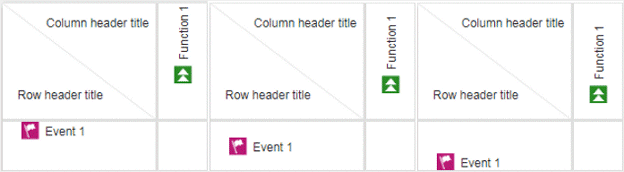
yYou can change the text orientation of a row or a column header.
Open a matrix model.
Click in a row or column header.
Click the Format tab.
If you want a horizontal text orientation, click the row or column header and click
 Text orientation > Horizontal.
If you want a vertical text orientation, click the row or column header and click
Text orientation >  Vertical.
The text is oriented accordingly.
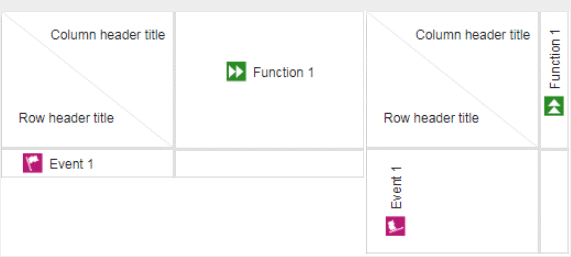
You can align the text of a row or a column horizontally.
Open a matrix model.
Click in a row or column header.
Click the Format tab.
If you want to align the text left, click the row or column header and click
 Align horizontally > Align left.
If you want to align the text left, click the row or column header and click
Align horizontally >  Align center.
If you want to align the text right, click the row or column header and click
Align horizontally >  Align right.
The text is aligned accordingly.
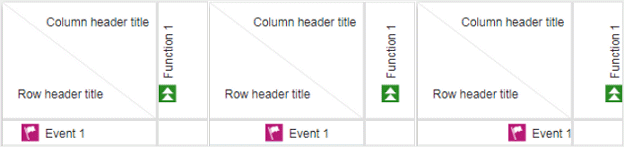
You can align the text of a row or a column vertically.
Open a matrix model.
Click in a row or column header.
Click the Format tab.
If you want to align the text top, click the row or column header and click
 Align vertically > Align top.
If you want to align the text center, click the row or column header and click
Align vertically >  Align center.
If you want to align the text bottom, click the row or column header and click
Align vertically >  Align bottom.
The text is aligned accordingly.