Hierarchies
Hierarchies specify what the Published content displays.
You can copy an existing hierarchy.
Open content types page.
Click the content type set for which you want to copy a hierarchy.
Click Hierarchies.
Select the hierarchy you want to copy.
Click
 Duplicate.
You have copied a hierarchy.
You can create a new hierarchy. By default, four hierarchies are available. We recommend that you avoid overlaps between the hierarchies. If you use Groups, you cannot use the other hierarchies because groups also contain Processes, for example, and this leads to overlaps. You can therefore either activate Processes, Organization, and IT systems or Groups.
Open content types page.
Click the content type set for which you want to copy a hierarchy.
Click Hierarchies.
Click
 Create new hierarchy.
You have created a hierarchy.
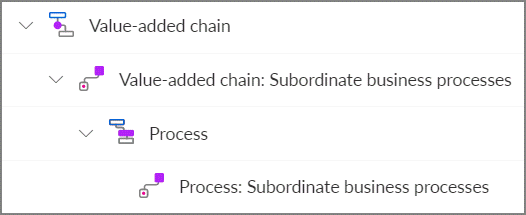
The following image displays the definition of a process hierarchy.
You can display the hierarchy details.
Open content types page.
Click the content type set for which you want to copy a hierarchy.
Click Hierarchies.
Select the hierarchy for which you want to display the details.
Click
 Details. The dialog opens.
The hierarchy details are displayed. The hierarchy identifier and name are displayed. You can edit the name in multiple languages and the identifier, if needed.
You can activate an existing hierarchy. When you activate hierarchies together, the hierarchies must not overlap. If you use Groups, you cannot use the other hierarchies because groups also contain Processes, for example, and this leads to overlaps. You can therefore either activate Processes, Organization, and IT systems or Groups.
Open content types page.
Click the content type set for which you want to copy a hierarchy.
Click Hierarchies.
Select the hierarchy you want to activate.
Click
 Activate.
You have activated a hierarchy. Only active hierarchies are displayed on the Published content page.
You can deactivate an existing hierarchy.
Open content types page.
Click the content type set for which you want to copy a hierarchy.
Click Hierarchies.
Select the hierarchy you want to deactivate.
Click
 Deactivate.
You have deactivated a hierarchy.
You can add hierarchy root. The hierarchy root is a model or object that is used as the top element in a hierarchy in Published content. This is required.
Open content types page.
Click the content type set for which you want to specify a hierarchy root.
Click Hierarchies.
Click the hierarchy to which you want to add a hierarchy root.
Click Create hierarchy root. The dialog opens.
Specify the settings. Specify the root content type and a corresponding property leading to the same content type for root item retrieval.
 Information contains information about the optional parent property.
You have added a hierarchy root to the hierarchy.
You can display the root content type details. The hierarchy root is a model or object that is used as the top element in a hierarchy in Published content.
Open content types page.
Click the content type set for which you want to copy a hierarchy.
Click Hierarchies.
Select the hierarchy for which you want to display the root details.
In the row of the root content type, click
Details. The dialog opens.
The root content type details are displayed. The root content type and a corresponding property leading to the same content type for root content type retrieval are displayed.
You can define start elements. This is not required. Start elements are, for example, a specific model or group in a database. You can, for example, define several start elements if you use several databases.
Open content types page.
Click the content type set for which you want to copy a hierarchy.
Click Hierarchies.
Click the relevant hierarchy.
Click Define start elements. The dialog opens.
Click
Add.Enter the GUID of the start element. To find the GUID, do the following.
Click
 Application launcher >
  Models and objects.
If you have more than one database, select the relevant database.
In the row of the group or model, click
 More.
More.Select
 Technical information. The dialog opens.
Copy the GUID. You can paste the GUID to the relevant field.
Click
 Confirm.
Specify whether the hierarchy should be displayed in case the start element is not accessible in the database.
Click Save.
You have defined a start element for the hierarchy.
Tip
You find more information about the elements when you click Information.
You can add hierarchy child content types to a hierarchy. Hierarchy children are displayed in the hierarchy tree.
Here you select a property. Then the hierarchy-creating property and the result hierarchy elements (content types) are added. If you do not want some of the automatically inserted result content types to be part of the hierarchy tree, you can delete them later. You can add them again later by editing the properties of the hierarchy content type property.
Open content types page.
Click the content type set for which you want to copy a hierarchy.
Click Hierarchies.
Click the hierarchy content type to which you want to add a child item.
Click
 Add hierarchy child. The dialog opens.
Specify the settings.
You have added a hierarchy child to the hierarchy.
You can display the hierarchy child details.
Open content types page.
Click the content type set for which you want to copy a hierarchy.
Click Hierarchies.
Select the hierarchy for which you want to display the root details.
In the row of the hierarchy child content type, click
Details. The dialog opens.
The hierarchy child details are displayed. You can select a property. Then the hierarchy-creating property and the result hierarchy elements (content types) are added. If you do not want some of the automatically inserted result content types to be part of the hierarchy tree, you can delete them later. You can add them again later by editing the properties of the hierarchy content type property.
You can display the hierarchy child/property details.
Open content types page.
Click the content type set for which you want to copy a hierarchy.
Click Hierarchies.
Select the hierarchy for which you want to display the root details.
In the row of the hierarchy child content type/property, click
Details. The dialog opens.
The hierarchy child or property details are displayed. You can can select a property.
You can add navigation child content types to a hierarchy. Navigation children are objects that specify which tree item to select in the Published content tree when a content type of the child type is selected in another panel.
Navigation child content types do not occur in the Published content tree.
Prerequisite
You have the Admin role and the Configuration Administration privilege.
You have created a set of content types.
Open content types page.
Click the content type set for which you want to copy a hierarchy.
Click Hierarchies.
Click the hierarchy content type to which you want to add a child item.
Click
 Add navigation child. The dialog opens.
Specify the settings.
You added a navigation child to the hierarchy content type.
Tip
For more information about the content types, click Information.
You can display the navigation child content type details.
Open content types page.
Click the content type set for which you want to copy a hierarchy.
Click Hierarchies.
Select the hierarchy for which you want to display the root details.
In the row of the navigation child content type, click
Details. The dialog opens.
The navigation child content type details are displayed.
Tip
For more information about the content types, click Information.
You can delete hierarchy items.
Open content types page.
Click the content type set for which you want to copy a hierarchy.
Click Hierarchies.
Select the hierarchy from which you want to delete a content type.
In the row of the relevant content type, click
 Delete.
You have deleted a hierarchy content type.
You can delete an existing hierarchy.
Open content types page.
Click the content type set for which you want to delete a hierarchy.
Click Hierarchies.
Select the hierarchy you want to delete.
Click
 Delete.
You have deleted a hierarchy.