Create objects
You can create a new object with the same name as an existing object.
In an open model, place an object in the modeling area. The name of the new object is selected for renaming.
Enter the name of an existing object.
Click in the modeling area or press Enter. You are informed that the entered name is already used.
In the Create a new object with this name area, click the name you entered.
The new object is created. The existing object and the new object are independent of each other. They have different GUIDs and can have completely different attributes except for the name.
You can create new objects in a text editor and insert them in ARIS.
Create and insert multiple objects of the same type.
In a text editor, enter the names of the new objects in separate lines.
To the right of the objects, enter the attributes separated by tabs.
Select all entries with Ctrl + A and copy them to the clipboard with Ctrl + C.
You can paste the contents of the clipboard into the Create Objects dialog to create new objects.
Insert the object definitions
Open a model.
In the Start tab bar, click
 Create objects. The dialog opens.
Click
Create objects. The dialog opens.Paste the clipboard content into the dialog by using Ctrl + V. The content is inserted into the dialog and rows are created for the symbol and attribute types.
In the Select symbol type header, click
 Configure to select the symbol type for all new objects.
In the Select attribute type headers, click
Configure to select the attribute type for all attributes of the column.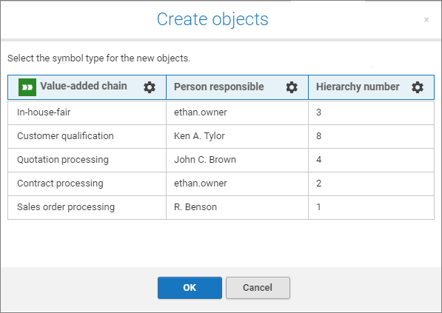
Click OK. The preview of the object symbols is displayed in the modeling area.
Click the position in the modeling area where you want to place the object symbols.
After placing the objects, you can connect them with other objects.
The Properties tab enables you to reuse or create objects. These objects are not displayed in the model. Instead, a model with an occurrence copy of the reused or created object is assigned to the selected objects. The assigned model type depends on the selected object type. A model of Function allocation diagram (FAD) type is assigned to a function, a model of Organizational chart type is assigned to an organizational object, such as Organizational unit.
You can reuse or create objects, for example, to Responsibilities (RACI), Input and Output data, and Locations.
The procedure for Responsibilities (RACI) is described below.
Open a model of type EPC and select a function.
Display the Properties tab of the
 Details bar if it is not already open.
On the Properties tab, open the Responsibilities (RACI) category.
Click
 Add in the Responsible field. The organizational objects relevant for RACI are displayed.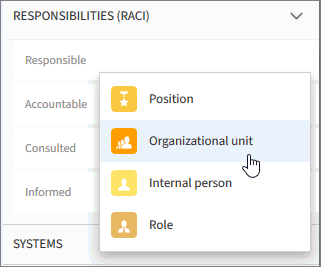
Click an object, for example, an Organizational unit. The organizational unit is inserted, and you can enter a name.
Enter a name. When you enter a name, all existing organizational units with the term entered in the name are offered. You can create a new organizational unit with the entered name by clicking Create or reuse an existing one by clicking on its name.
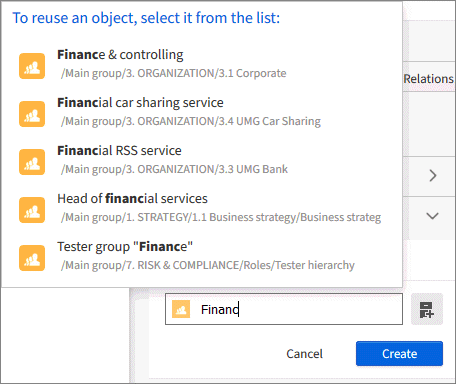
Click Finance & controlling. A model containing an occurrence copy of the Finance & controlling object is assigned to the object you selected in the source model.
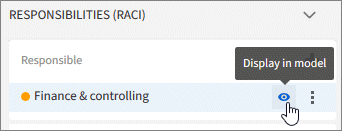
Click
 Display object in model if you want the Finance & controlling object to be displayed in the model.
You have reused an object with the Properties tab.
You can reuse existing objects not only by placing occurrence copies.
In an open model, place an object in the modeling area. The name of the new object is selected for renaming. You can also select an already placed object and press F2 to select the name to overwrite.
Enter at least two characters of the name of an existing object. All objects within the database whose name contain the entered characters are displayed.
Click the name of the object you want to reuse.
The placed object becomes an occurrence copy of the existing object.