Create a new data feed
You can create your data feeds using the data feed editor.
Prerequisite
You have the required privileges.
Click
 Application launcher >
  Dashboards & data feeds. The dashboards are displayed.
Click Data feeds.
Click Create data feed.
The data feed editor opens with an empty data feed.
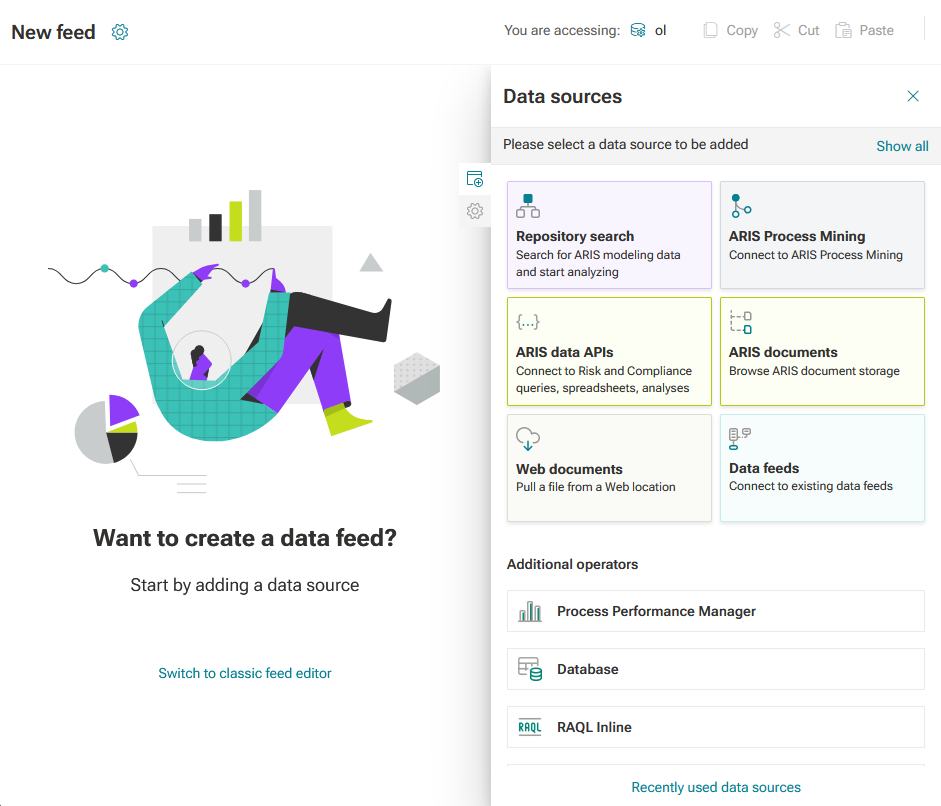
You can now configure a data stream.
Click the
 icon -> Save.
Enter a new data feed name and click Save.
Your data feed is created and available in the Data feeds list in the Dashboards & Data feeds view in the Repository of ARIS.
You can assign the data feed as a data source for a dashboard widget.
To delete a data feed, move the mouse pointer over a data feed in the data feed list and click the  Delete icon in the corresponding row. To delete one or more data feeds, select the data feeds you want to delete and click the Delete icon on the toolbar and click Yes to confirm the deletion.